
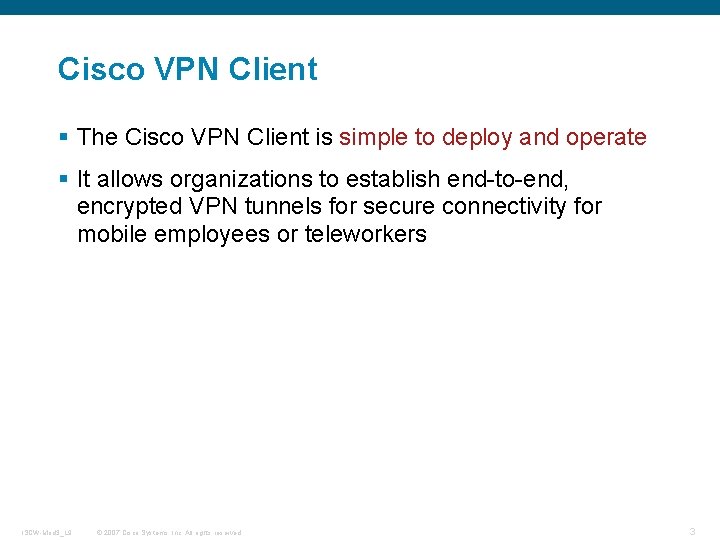
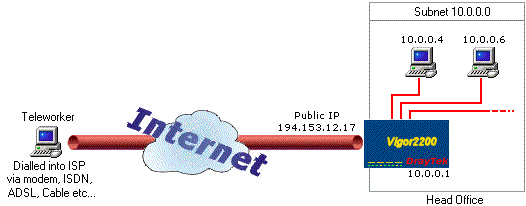
Meraki Teleworker VPN makes it easy to extend the corporate LAN to remote sites, without requiring all clients and devices to have client VPN. Workers in small branches, home offices or on the road can securely connect to the corporate email server, file shares and central PBX. . Teleworker VPN Client: Click On to enable the Teleworker VPN Client feature and hence set the security appliance as a Cisco VPN hardware client, or click Off to disable it. NOTE: Enabling the Teleworker VPN Client feature will disable the Site-to-Site VPN and IPsec Remote Access features and terminate their connected VPN sessions.
Configuring Teleworker VPN Client Group Policies
To be able to complete the configuration of a Teleworker VPN Client group policy, you must have the following information ready.
•IPsec VPN server’s IP address or hostname.
•IPsec VPN server’s group policy name.

•Pre-shared key or digital certificates for IKE authentication.
Note Up to 16 Teleworker VPN Client group policies can be configured on the security appliance. You can create multiple group polices to connect to different VPN servers but only one VPN connection can be active at a time.

1.Click VPN > Teleworker VPN Client.
2.To add a group policy, click Add.
Other Options: To edit an entry, click the Edit (pencil) icon. To delete an entry, click the Delete (x) icon. To delete multiple entries, check them and click Delete.
The Teleworker VPN Client - Add/Edit window opens.
3.In the Basic Settings tab, enter the following information:
•Description: Enter the name for the group policy.
•Server (Remote Address): Enter the IP address or domain name of the remote IPsec VPN server.
•Activate Connection on Startup: Click On to automatically initiate the VPN connection when the security appliance starts up, or click Off to disable it. Only one VPN connection can be active on startup.
•IKE Authentication Method: The VPN client must be properly authenticated before it can access the remote network. Choose one of the following authentication methods:
–Pre-shared Key: Choose this option if the IPsec VPN server uses a simple, password-based key to authenticate and then enter the following information:
Group Name: Enter the name of the IPsec Remote Access group policy that is defined on the IPsec VPN server. The security appliance will use this group policy to establish the VPN connection with the IPsec VPN server. The IPsec VPN server pushes the security settings over the VPN tunnel to the security appliance.
Password: Enter the pre-shared key specified in the selected group policy to establish a VPN connection. The pre-shared key must be entered exactly the same here and on the IPsec VPN server.
–Certificate: Choose this option if the IPsec VPN server uses the digital certificate from a third party Certificate Authority (CA) to authenticate. Select a CA certificate as your local certificate from the Local Certificate drop-down list and select the CA certificate used on the remote IPsec VPN server as the remote certificate from the Peer Certificate drop-down list for authentication.
NOTE: You must have valid CA certificates imported on your security appliance before choosing this option. Go to the Device Management > Certificate Management page to import the CA certificates. See Managing Certificates for Authentication, page 350.
•Mode: The operation mode determines whether the inside hosts relative to the Cisco VPN hardware client are accessible from the corporate network over the VPN tunnel. Specifying an operation mode is mandatory before making a VPN connection because the Cisco VPN hardware client does not have a default mode. For more information about the operation mode, see Modes of Operation.
–Choose Client if you want the PCs and other devices on the security appliance’s inside networks to form a private network with private IP addresses. Network Address Translation (NAT) and Port Address Translation (PAT) will be used. Devices outside the LAN will not be able to ping devices on the LAN, or reach them directly.
–Choose NEM (Network Extension Mode) if you want the devices connected to the inside interfaces to have IP addresses that are routable and reachable by the destination network. The devices at both ends of the connection will form one logical network. PAT will be automatically disabled, allowing the PCs and hosts at both ends of the connection to have direct access to one another.
•VLAN: If you choose NEM, specify the VLAN that permits access from and to the private network of the IPsec VPN server.
•User Name: Enter the username used by the Teleworker VPN client to establish a VPN connection.
•User Password: Enter the password used by the Teleworker VPN client to establish a VPN connection.
4.In the Zone Access Control tab, you can control access from the zones in your network to the remote network if the Teleworker VPN client works in Client mode. Click Permit to permit access, or click Deny to deny access.
NOTE: The VPN firewall rules that are automatically generated by the zone access control settings will be added to the list of firewall rules with the priority higher than the default firewall rules, but lower than the custom firewall rules.
5.In the Advanced Settings tab, enter the following information.
•Backup Server 1/2/3: Enter the IP address or hostname for the backup server. You can specify up to three servers as backup. When the connection to the primary IPsec VPN server fails, the security appliance can initiate the VPN connection to the backup servers. The backup server 1 has the highest priority and the backup server 3 has the lowest priority.
NOTE: The Teleworker VPN client can get the backup servers from the IPsec VPN server during the tunnel negotiation. The backup servers specified on the IPsec VPN server have higher priority than the back servers specified on the Teleworker VPN client. When the primary connection fails, first try to connect to the backup servers specified on the IPsec VPN server, and then try to connect to the backup servers specified on the Teleworker VPN client.
•Peer Timeout: Enter the value of detection timeout in seconds. If no response and no traffic from the primary server or the backup server over the timeout, declare the peer dead. The default value is 120 seconds.
6.Click OK to save your settings.
7.A warning message appears saying “Do you want to make this connection active when the settings are saved? (Only one connection can be active at a time.)”
Vpn Gate Client
•If you want to immediately activate the connection after the settings are saved, click the Activate Connection button. When you create multiple Teleworker VPN Client group policies at a time, only one connection can be active after you save your settings. The security appliance will use the group policy that was last created or edited to initiate the VPN connection.
•If you only want to create the Teleworker VPN client group policy and do not want to immediately activate the connection after the settings are saved, click the Do Not Activate button. You can click the Connect icon to manually establish the VPN connection.
NOTE: This feature is different from the Active Connection on Startup feature. It is used to activate the connection immediately after the settings are saved, but the Activate Connection on Startup feature is used to activate the connection when the security appliance starts up.
8.Click Save to apply your settings.
Vpn Client Manager
By Sarah Hunt | PrintIf they didn’t have a handle on what a virtual private network (VPN) was prior to 2020, millions of workers around the global were intimately familiar with the technology by year’s end.
VPN solutions made it possible for enterprises to pick up the ball and keep running, despite global shutdowns in the wake of the sweeping COVID-19 pandemic. Ideally, employees could log on to work, away from work, and enjoy a seamless experience as close to the real thing as possible.
In the best case scenarios, this proved true, but as many enterprises discovered, VPN is not always the seamless experience they’d planned for.
Comcast Business and Cisco Meraki are working together to elevate the VPN experience through a new partnership aimed at creating a better, more secure, reliable, high-performance connection between corporate networks and remote workers. The innovative approach will expand Comcast Business Teleworker VPN solution in several key ways.
Comcast Teleworker VPN with Cisco Meraki
Amit Verma, VP of solution engineering and technology at Comcast Business, said, “When combined with our Teleworker Broadband solution, the Comcast Business Teleworker VPN solution with Cisco Meraki allows enterprises to gain peace of mind while providing their employees with a secure, independent Internet connection that does not interfere or compete with their at-home Internet – freeing up home bandwidth for remote learning, entertainment and more.”
The unified offering
Comcast describes the goal of its Business Teleworker VPN as providing remote employees the “same corporate network experience and service they have in the office.” Joining forces with Cisco Meraki is meant to enhance this service as an enterprise-class, cloud-native platform that will bring enterprise-grade VPN gateways to business locations. The gateways can also be housed in Cisco’s Secure Gateway Service centers.
The unified product offering includes remote, all-in-one devices that grant users access to cloud security and wireless and wired connectivity options from home, centrally managed on the Cisco Meraki cloud platform.
Target users
Comcast Teleworker VPN with Cisco Meraki is squarely aimed at enterprise clients that need to connect remote workers to complex networks.
Key use cases
The primary use case for the new initiative is to improve on VPN solutions that have been inadequate for enterprises. The solution can potentially improve speed, performance and stability for remote workforces across virtually any enterprise industry.
Comcast Teleworker VPN
Comcast touts several benefits for users of its Comcast Teleworker VPN, including:
• Centralized, simplified cloud management and optimization
• Round-the-clock support provided by Comcast Business
• Policy-based access controls and traffic segmentation
• Consistency between home and office work experiences
• Ability to add 4G LTE backup for business continuity among remote employees
Cisco Meraki
The Cisco Meraki cloud-based platform includes tools focused on wireless, switching, security, enterprise mobility management (EMM), and security cameras. The partnership will include Cisco-powered hardware designed to increase speeds and performance across Comcast’s Teleworker VPN solution.
VPN market
On the whole, the global VPN market is growing exceptionally fast. Statista estimates that the market was worth $25 billion in 2019 and will rise to an estimated $75.59 value by 2027.
Especially in light of the increase in remote work during the COVID-19 pandemic, VPN has become a must-have enterprise investment. ResearchandMarkets.com reports that VPN usage “spiraled” to an all-time high of 27.1% in 2020.
Top VPN providers
TrustRadius ranks these VPN providers among its most reviewed and well-regarded:
1. FortiGate
2. Cisco AnyConnect
3. Citrix Gateway
4. BIG-IP
5. Barracuda CloudGen Firewall
6. Pulse Connect Secure (SSL-VPN)
7. Golden Frog VyprVPN
8. KeepSolid VPN Unlimited
9. SonicWall VPN Clients
10. FatPipe MPVPN
Robust VPN investment will be key in the remote worker age
Selecting a quality, reliable VPN solution may be the single most important thing enterprises can do to remain competitive at a time when remote work has become the norm. Already, major corporations have announced they will no longer require workers to come into the office. Many are expanding hiring to include a global workforce that can log in from virtually anywhere.
The Comcast Teleworker VPN with Cisco Meraki support is a leading example of two major forces coming together to improve on current market offerings. The companies will surely find success if they can, in fact, replicate an on-prem networking experience for workers logging in from their home offices.
Related articles
• IT Business Edge: Top VPNs for business cybersecurity 2021
• eSecurity Planet: VPN security: How VPNs work in 2021
• Webopedia: Virtual private network (VPN) guide
What Partners Need to Know About HP, ...
In the channel, HP, Inc. is a storied vendor that has relationships...Watch Now